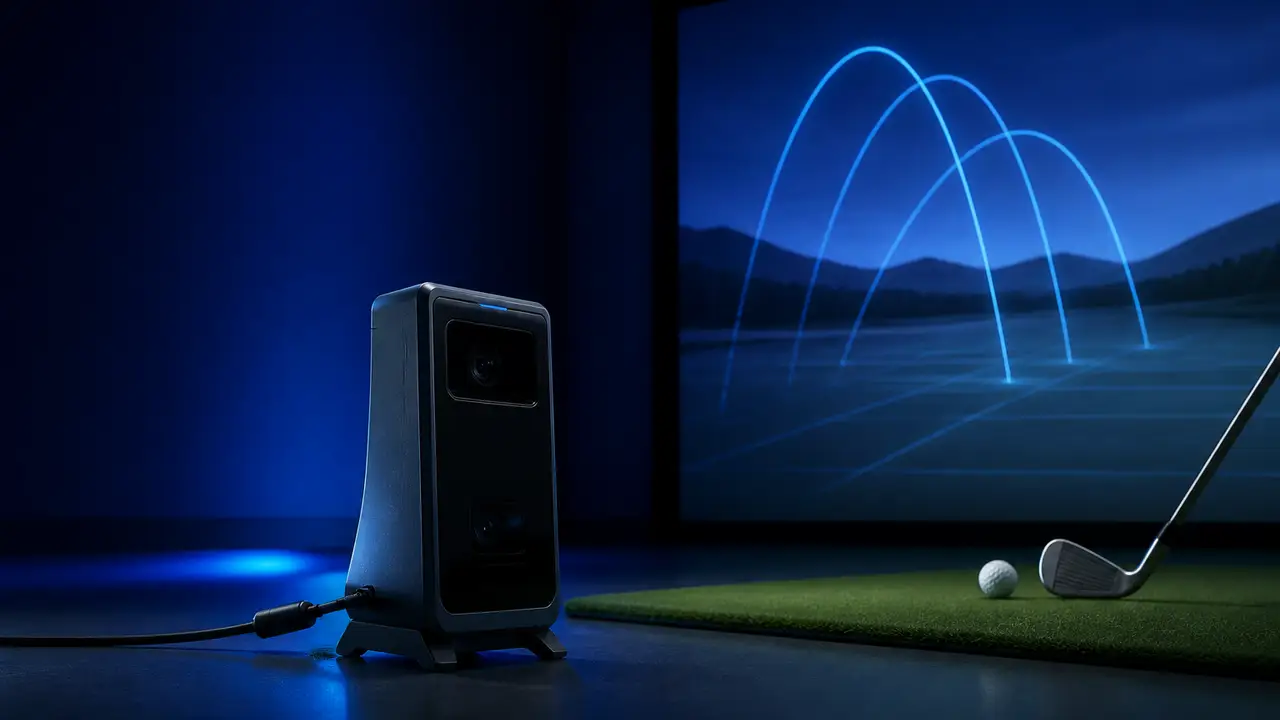
How to connect a launch monitor to Pureplay, Infinite Tees or ShotForge
Check your exact model, choose the right connector, and use a three-shot test to confirm the simulator is receiving data.
By The Perfect Lie / Published November 4, 2026
Check the exact model on your launch monitor before you install anything. The same device can connect directly in one simulator and need a separate app in another. Start with the connection route below, then use the three-shot check at the end to make sure the game is receiving data.
*Vendor documentation checked November 4, 2026. Pairing and shot capture still need hands-on verification.*
Simulator What you can use Where to start Pureplay Built-in integrations for Square Golf, Spectrum Element, ProTee VX, GolfJoy, VTrack, Nova, NVisage, Bullseye and Garmin. Some entries name a brand only. Paid early access is scheduled for November 6 at 5 p.m. Eastern. Confirm your exact model, then use the installer in your dashboard when you have access. Infinite Tees Official connectors for Nova by Open Launch, Spectrum Golf Technologies, VTrack and Bullseye Golf Sims. Community connectors are available separately. Use the launcher from your Infinite Tees account and get the connector instructions for your model. ShotForge Launch monitors that can send data through a compatible connector. ShotForge publishes no complete model list. Confirm the connector for your model and current Windows app build before starting the trial. Pureplay FAQ · Pureplay early access · Infinite Tees compatibility FAQ · ShotForge setup FAQ
Free to play
Make your call with Beat Chuck
Check the challenge board for the latest open games.
All Beat Chuck games →
Pureplay
Pureplay names ProTee VX and Spectrum Element specifically. Its public list gives brand names for the remaining integrations. If you have a Garmin Approach R10 or R50, a Square Home or Omni, or another model from a listed brand, verify that exact unit with Pureplay before you buy. The company describes its official integrations as built into the game using manufacturer software kits. Pureplay integration list
- Install the launcher. Once you have access, get the installer from the Download page in your Pureplay dashboard. The official installer is signed by Beacon Games Pty Ltd. Pureplay lists Windows 10 or 11, TPM 2.0, 50 GB free, and an internet connection for activation and at least once every seven days.
- Bring the game up to date. Open the launcher, apply any available update and select Play.
- Use the built-in integration for your model. Follow the monitor maker’s instructions to power on, align and calibrate it. Use Pureplay’s instructions for the in-game connection. Its public documentation leaves the exact pairing steps for most models unconfirmed. Give support your model and firmware version if you get stuck.
Pureplay installation instructions · Pureplay system requirements
Infinite Tees
- Install and activate. Start from the official trial or your account, which provides the launcher link and license key. Open the launcher and enter the key. The company requires an active internet connection.
- Get the connector for your model. For Nova by Open Launch, Spectrum, VTrack or Bullseye, ask Infinite Tees’ support community for the manufacturer-approved connector and instructions for your unit. VTrack owners can connect and calibrate the sensor in VTrackToolkit first to confirm the monitor can see the ball.
- Open the Driving Range and check for a recorded shot. For a community connector, check its documentation for the correct mode and when the simulator starts accepting shots. Infinite Tees limits official connector support to integrations developed with or approved by the hardware maker.
Infinite Tees launcher and device FAQ · Infinite Tees connector policy · SwingCraft VTrack setup
ShotForge
- Confirm the connector first. ShotForge directs owners to its Discord, where it has channels for different monitors. Ask for the connector name and version for your exact model and ShotForge build. Check that your connector can send shots to ShotForge before relying on it.
- Install ShotForge through the official Windows trial or subscription. If your monitor needs a separate connector, run it as directed for your model, then start ShotForge. The company says it receives data automatically once the connection is active. A GSPro subscription is unnecessary.
- Start with a practice session. Hit a few shots and confirm they appear. Use ball speed and launch angle for the first check. The public FAQ describes a focus on ball data. Ask about individual club metrics if those matter to you.
ShotForge trial and support · ShotForge setup FAQ
Using a ProTee VX? One community developer reports testing its Windows VX Connector with both Infinite Tees and ShotForge, using a different connector mode for each. Check its current instructions and support status before trying it. VX Connector project
Check that shots make it into the game
- Confirm the monitor sees the ball. Use its normal ready indicator or its own app. If it misses a shot, check the hitting zone and alignment first.
- Hit three ordinary shots in the range. Watch for three separate results. Check that ball speed and launch angle look plausible and the direction matches what you hit. Test a short chip or putt separately if you use those modes.
- Restart and repeat. If the monitor records shots but the game stays idle, check whether the connector is running, which simulator it targets, and whether another program is using the monitor. If you need help, share the monitor model and firmware, simulator and connector versions, and where the failure happens.
More from The Perfect Lie
Related stories
 GearJoe Lagowski plays PurePlay's Kidnappers back nine on NVisage's Neo E and flags two early bugs
 NewsShotForge 2.0 moves to Unreal Engine and adds island ranges and mini-games
 GearMyGolfSpy's 2026 launch monitor test ranks Bushnell's Launch Pro first and the new $1,699 GC2 second
 GearSpinPoint's $499 Delta is a four-camera launch monitor with real limits, Joe Lagowski finds